
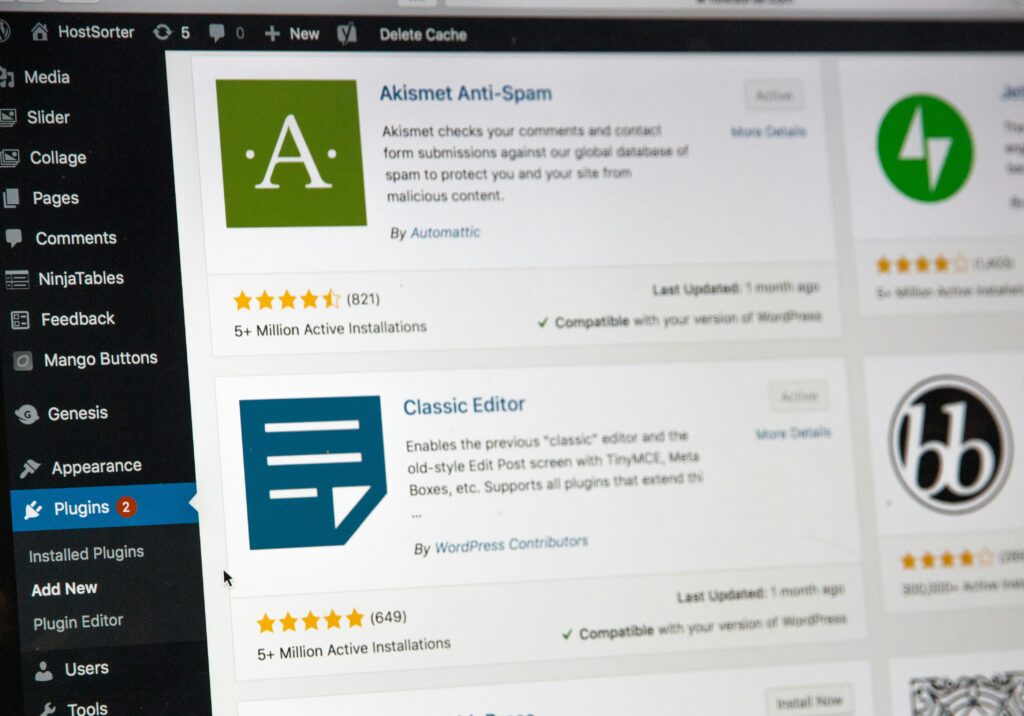
Introduction to WordPress Plugins
WordPress is a versatile content management system (CMS) that powers millions of websites across the globe. One of the key features that enhances its functionality is the use of plugins. Essentially, WordPress plugins are like applications that can be added to a WordPress site to extend its capabilities and add new features. They enable users to customize their website without requiring extensive knowledge of coding, making them an essential tool for both novice and experienced webmasters.
The importance of WordPress plugins cannot be understated; they significantly enhance the user experience and site performance. With plugins, you can incorporate various functionalities such as SEO optimization, security enhancements, social media integration, and eCommerce solutions, among others. These tools allow site owners to tailor the website to meet their specific needs and objectives, ultimately resulting in improved engagement and satisfaction among users.
There are thousands of WordPress plugins available in the official plugin repository, each catering to different needs and purposes. They can broadly be categorized into various types, including but not limited to contact forms, galleries, analytics, security, and performance optimization. When selecting the best WordPress plugins for your website, several factors should be considered. It is crucial to check the plugin’s compatibility with your current version of WordPress, its updates and support, user reviews, and overall performance metrics. Selecting the right plugins not only boosts the functionality of your WordPress site but also contributes to better site performance and enhanced user experience.
Top WordPress Plugins You Should Consider
WordPress offers a plethora of plugins to enhance website functionality, improve performance, and secure websites. This section enumerates some of the top plugins available for various purposes.
One of the most important categories is Search Engine Optimization (SEO). Yoast SEO is considered a must-have for any WordPress site. This plugin provides comprehensive tools for optimizing content, including keyword analysis, readability assessment, and meta description adjustments. Its user-friendly interface makes it accessible for both beginners and advanced users. However, reliance on automatic suggestions may lead to complacency in understanding SEO fundamentals.
Security is another vital aspect of WordPress management. Wordfence Security stands out as one of the best security plugins, providing firewalls, malware scanning, and real-time traffic monitoring. Its detailed reporting and alert system help users stay informed about potential threats. Despite its extensive features, the free version might not offer all functionalities necessary for larger sites, prompting some users to consider the premium version.
For performance optimization, WP Rocket offers caching capabilities that can significantly enhance site speed and responsiveness. The user-friendly setup allows for quick configuration of various optimization settings, such as file minification and image optimization. Although it requires a premium purchase, many users find that the increase in website performance justifies the cost.
Lastly, when it comes to content creation, Elementor is an exceptional page builder that allows for drag-and-drop creation of visually appealing pages without the need for coding. Its vast template library and customization options cater to multiple design preferences. However, there can be a learning curve for users inexperienced with visual editing tools.
These plugins represent just a fraction of the available options, but they are highly regarded for their effectiveness and usability. Utilizing these tools can lead to an improved WordPress experience, whether in terms of SEO, security, performance, or content creation.
How to Install and Configure WordPress Plugins
Installing and configuring plugins on a WordPress site is a straightforward process. To begin, log in to your WordPress admin dashboard. Navigate to the left-hand menu and click on “Plugins,” followed by “Add New.” Here, you can either search for specific plugins using the search bar or browse through the featured and popular plugins. Once you find the desired plugin, click on the “Install Now” button associated with it.
After the plugin is installed, the button will change to “Activate.” Click this button to activate the plugin on your website. Many plugins will require additional configuration before they are fully operational. To configure a newly installed plugin, you can generally find the plugin’s settings option directly in the Plugins menu or under a separate item in the left-hand sidebar, often named after the plugin itself.
It is essential to follow any setup instructions provided by the plugin developers to maximize its functionality. This may include adjusting settings, connecting your plugin to external services, or configuring user roles. Popular plugins like Yoast SEO or WooCommerce often have their own setup wizards that guide you through the configuration process step-by-step.
In some cases, you might encounter issues when installing or activating plugins. Common troubleshooting steps include disabling other plugins to avoid conflicts, ensuring your WordPress version is up to date, and checking PHP compatibility. If a plugin does not activate properly due to compatibility issues, consider reaching out to the plugin developer for support or checking their documentation online.
In summary, installing and configuring WordPress plugins enhances the functionality of your site. By following these outlined steps and addressing common issues, users can effectively implement plugins, thus improving their website’s capabilities.
Best Practices for Using WordPress Plugins
Utilizing plugins can greatly enhance the functionality of a WordPress site; however, adhering to best practices is essential for optimal performance. First and foremost, it is crucial to evaluate the performance of any plugin before installation. Check the plugin’s ratings, reviews, and the number of active installations to determine its reliability. Additionally, research the developer’s track record and ensure they provide regular updates and support. This helps in identifying plugins that not only deliver the promised features but are also trustworthy and well-supported.
Keeping your plugins updated is another fundamental best practice. Developers frequently release updates to address security vulnerabilities, fix bugs, and improve performance. As such, routinely check for updates in your WordPress dashboard and apply them promptly. Outdated plugins can not only compromise the security of your site but may cause compatibility issues with themes or other plugins, ultimately hindering functionality and performance.
Regularly reviewing your plugin usage is equally important. Over time, you may accumulate a variety of plugins, and some may become unnecessary or redundant. Periodically assess each plugin’s role and effectiveness. Remove any plugins that do not significantly contribute to your site’s performance or user experience. In addition, it is advisable to minimize the number of active plugins as a best practice, as too many plugins can lead to slower loading times and potential conflicts.
Optimization is key in maintaining a smooth-running site. Employ tools to analyze your site’s speed and performance and ensure that your chosen plugins perform efficiently without causing any disruptions. By following these best practices for managing WordPress plugins, site owners can enhance their website’s functionality while maintaining an efficient and secure environment.